View your CT scans directly in the browser
Open your CBCT and CT files with a single click — no installation, no registration, no cloud. Slice by slice, in 3D, panoramic view or MPR.
CT analysis the way you always wanted
No expensive software to buy, nothing to download, and patient data never touches the internet.
Works in the browser
No installation, download or updates needed. Open the app, drag in your CT files, and view them instantly. Chrome, Edge, Firefox — any modern browser.
Patient data stays safe
DICOM files are processed exclusively on your computer. Nothing goes to the internet, a server or the cloud. Patient data never leaves the clinic.
Measure & annotate
Distance measurement in millimeters, angle measurement, area selection, bone density readout. Add annotations to any slice for patient consultation.
Multi-language interface
Full English and Hungarian interface — switch between languages with a single click in the settings menu.
Image export
Save any view as a PNG or JPEG image. Patient data and measurement results are included — ideal for documentation or referrals.
Optimized for dentistry
Pre-configured display modes for enamel, bone, soft tissue, sinus and full tooth. One click — and the relevant tissue type is highlighted.
View CT scans in 3 simple steps
No registration, no installation, no complicated setup.
Open the application
The app runs in your browser. No downloads or installs needed — just open the page and start using it immediately.
Drop your DICOM files
Drag your CT/CBCT files or the entire folder into the app. The scan appears in seconds — nothing is uploaded anywhere, everything stays local.
View, measure, export
Switch between 4 views, measure distances, explore the 3D reconstruction, or generate a panoramic image. Save anything you need as an image.
Four views for the complete picture
Everything you need for diagnosis and treatment planning.
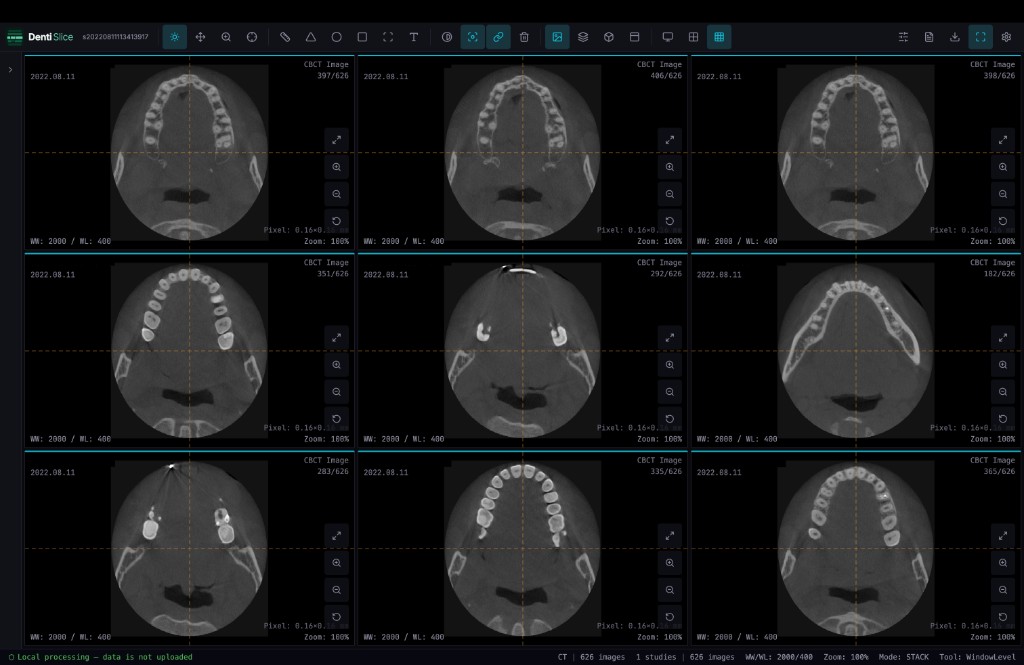
Classic slice-by-slice display
Browse CT slices layer by layer as you’re used to. Scroll with your mouse and jump to exactly the slice you want to see.
- Scroll through slices with the mouse wheel
- Up to 9 slices on screen simultaneously
- Quick brightness and contrast adjustment
- Zoom into the details
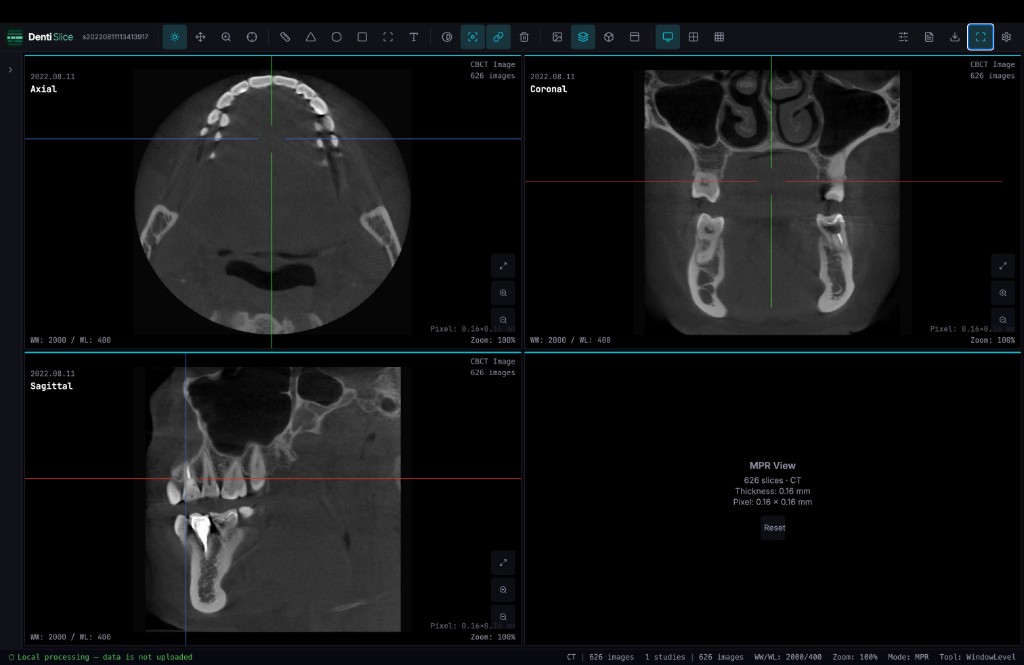
Three-plane reconstruction
See the scan from top, front and side on one screen. The crosshair shows where you are in the other two views — find anything and immediately know its exact position.
- Axial, coronal and sagittal slices at once
- Color-coded crosshair for easy navigation
- Click anywhere — the other views follow
- Measure directly in any view
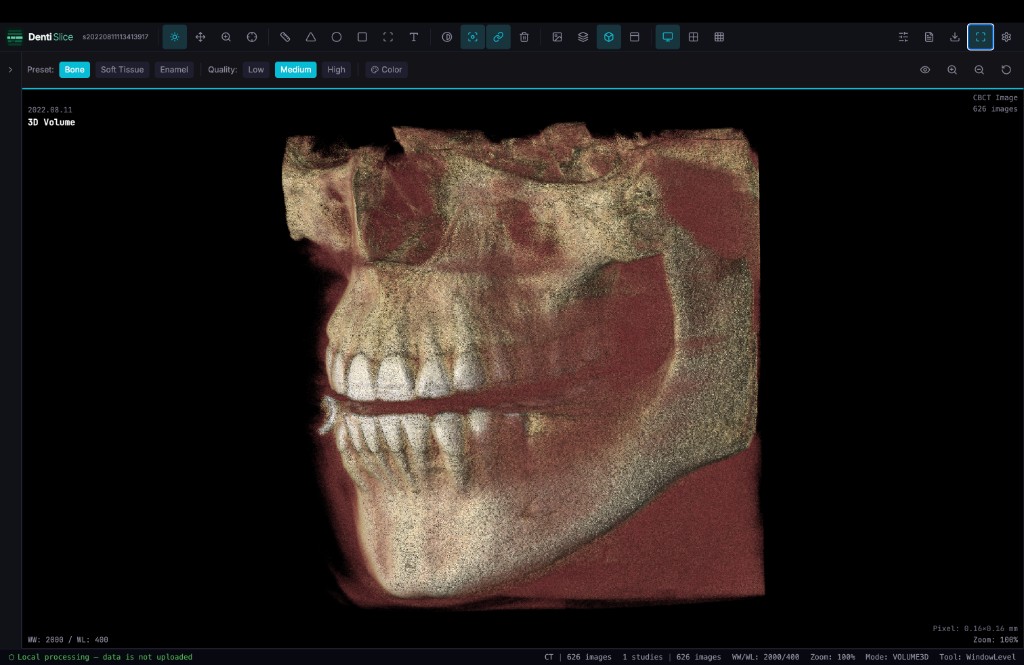
Rotate in three dimensions
See the full structure in space. Rotate, zoom, view from different angles. Ideal for presenting treatment plans to patients and preparing implant planning.
- Rotate, zoom and pan with the mouse
- Highlight bone, soft tissue or enamel
- Multiple color modes for better overview
- Front view button for quick reset
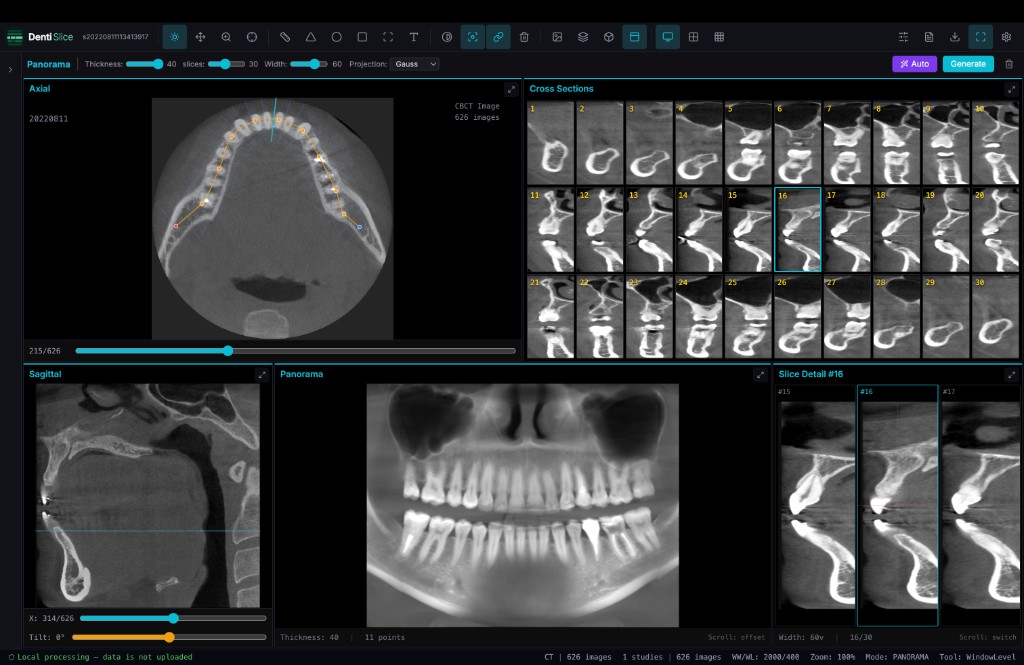
Panoramic image from CBCT
Generate a traditional panoramic X-ray-like image from the 3D scan. Draw the dental arch — or let the app detect it automatically — and your panorama is ready.
- Automatic dental arch detection
- Cross-sectional views along the arch
- Detailed slice view for any tooth
- Adjustable panorama thickness and width
Measure, annotate, analyze
All the tools you need for accurate diagnosis and documentation.
Distance measurement
Measure point-to-point distance in millimeters — e.g. bone height for implants.
Angle measurement
Measure the angle between two lines — root canal direction, tooth tilt, implant axis.
Area selection
Select an ellipse or rectangle area — with size and density data.
Bone density (HU)
Read the Hounsfield value of any point — for bone quality assessment.
Annotations
Write text notes on any slice with an arrow — for consultation or documentation.
Zoom & pan
Zoom into the details and pan the image to the exact area.
Brightness & contrast
Adjust the image so the structure you’re looking for is best visible.
Save image
Export any view as PNG or JPEG — with measurements and data included.
One click — and you see the right tissue
Pre-configured display modes that automatically highlight the desired tissue type on the CT image.
Enamel
Highlight enamel and hard tooth structure
Bone
Jawbone, alveolar bone, bone crest display
Soft tissue
Gingiva, mucosa and soft tissue examination
Tooth
Full tooth structure — root, crown, pulp
Sinus
Maxillary sinus display for sinus lift planning
Patient data never leaves the clinic
No need to worry about data protection — files never touch the internet.
Questions?
What file formats are supported?
The app handles DICOM format files (.dcm, .dicom extension, or without extension). This is the standard format used by CBCT and CT machines — it's what you get when exporting scans.
Do I need to install anything?
No. The app runs directly in your browser. Chrome, Edge or Firefox is needed — all available on any modern computer.
Is it safe for patient data?
Yes. DICOM files are processed exclusively on your computer. No data goes to the internet, a server or any third party. The app even works offline after loading.
What CT scans can it display?
Primarily designed for dental CBCT scans, but it can display any CT series in DICOM format. The preset display modes are optimized for dental tissues.
How much does it cost?
The application is completely free.
What hardware do I need?
Any modern computer that can handle CBCT scans. The 3D view and panorama require slightly more resources — at least 8 GB RAM is recommended.
Try it now — free, no installation
Open the app, drag in your DICOM files, and see your CT scan instantly.
Launch DentiSlice →